WhatsApp Message Templates Examples (Transactional & Promotional) 

All the templates will have variable information inside curly brackets {{ }}. {{1}}, {{2}}, {{3}} etc., will be automatically replaced with the corresponding details from your database every time the message is sent. 

Account updates

When a subscriber makes changes to their account, such as adding their photo, editing their password, or their email, you can send a message to inform them about these changes.

1.

Hello {{1}}, We’ve received your password change request. Please remember the new password next time when you log in. If you didn’t make this change, please contact our customer support at help@companyname.com.

2.

Hello {{1}}, your account for {{2}} has been approved. You can now login with the details shared with you over email. If you are stuck anywhere, please reach out to us at {{3}}. 

Alert updates

These templates can be used for general business information. For example, updates on shipping, delivery, or any delays.

3.

Hi {{1}}, welcome to [company name]! We’ve received your order successfully. To keep you updated about the delivery of your order, we’ll be sending you messages via WhatsApp. If you have any queries, please contact support at [support email]. Happy to help you out. 

4.

Hi {{1}}, this is to inform you that the demo scheduled for {{2}} on {{3}} has been canceled due to technical issues. We’ll get in touch with you over the phone to reschedule it at the earliest. Sorry for the inconvenience.

Appointment updates

These are great to reduce no-shows or keep customers informed if there is any change in their appointment timing. It will reduce support tickets & frustration on the customer side. 

5.

Hello {{1}}! You have an appointment scheduled with us n {{2}} at {{3}}. Please reach 10 minutes in advance to complete any formalities. We look forward to seeing you there. 

6.

Hello {{1}}. Hope you are doing fine. You did not show up at your appointment on {{2}} at {{3}}. 

Please contact us at number {{4}} to reschedule or reply back to this message. Thank you.

Auto-reply

Auto-reply templates are used to keep customers informed about your accessibility during non-working hours or holiday periods. This helps customers stay informed about why you are not responding. 

7.

Thanks for your message! You’ve reached us outside of our working hours which are Mon-Fri, 9 am-7 pm. We’ll get back to you within 24 hours. Meanwhile, you can check out our FAQs to help resolve your query. 

8.

Hi {{1}}, thanks for contacting us. Our team of experts will reach out to you soon. Select the option below to schedule a call back with our expert or to explore our services. [Insert CTAs to schedule a call and explore services] 

Issue resolution

Your app broke down? Or there was a glitch in your software? Use these issue resolution templates to inform customers when issues are resolved or keep them calm that their accounts haven’t been affected. 

9.

Hello {{1}}, We are currently experiencing a technical issue concerning {{2}}. You could possibly experience some downtime. Our team is working hard to resolve the issue. We’ll keep you informed when it is fixed. 

10.

When the issue has been fixed:

The {{1}} issue has been resolved and all services on the app are up and running. If you still experience problems, let us know. We are happy to offer you further support!

Payment update

Give your customers peace of mind by letting them know when you’ve received their payment. It also confirms that their order has been received. Hence, you build a more trustworthy brand and reduce support tickets.

11.

Hello {{1}}, We’ve received your payment for order {{2}}. We’ll send you the tracking details in 24 hours and will ship your order for {{3}} as quickly as possible! 

12.

Hi {{1}}. This is a gentle reminder you that your payment for {{2}}, worth {{3}} is due on {{4}}. 

Personal finance update

If you are a financial institution (bank, fintech platform, or crypto exchange), you can use this template to keep your customers informed about their balance, upcoming deductions, or credit card bills. 

13.

Hello {{1}}, Your balance for debit account number {{2}} is ${{3}}. Thank you for being our valued customer. To check your credit card bill, please visit {{4}}. 

14.

Hello {{1}}. We have received your loan application of amount {{2}}. This is to inform you that we will be doing due diligence. Please reach out to us for any issues at {{3}}. 

Note: WhatsApp does not just allow every financial institution to use the WhatsApp Business API. Read their terms and conditions to find out if your organization qualifies for Whatsapp Business.

Reservation update

This template is perfect for hospitality businesses (bars, restaurants). Use these to inform customers that their table or room is ready or if there is any change in the schedule. 

15.

Hello {{1}}, Thank you for booking a table for {{2}} with us. Your dinner starts at {{3}}. If you want any changes to be made, please reply back or reach the reception telephone at {{4}}. See you! 

16.

Hi {{1}}, Your stay at our hotel on {{2}} is confirmed. Check-in time is {{3}}. We wish you a pleasant stay.

Shipping update

Who doesn’t love a message telling them where their order has reached and when it’s due for delivery. So use this template message to inform customers about their order status. 

17.

Hello! Your order has been shipped & is currently on its way to be delivered as quickly as possible. {{1}} will deliver your package to your address on {{2}}. Here’s the tracking code {{3}}. Enjoy your new product!

Ticket updates

When a customer submits a ticket, they expect quick a reply but that’s possible most of the time. So use this template to inform that about their ticket until a customer service rep gets back to them. 

18.

Hi {{1}}, Thank you for reaching out to our customer support team. We’ve received your query and will get back to you within {{2}} hours. 

Transportation update

If you run a transportation company, be it via land, water, or air, you can use this template to share the ticket, inform about pickup locations, any change in the timing or where customers can find their luggage. 

19.

Hi {{1}}, Your trip to {{2}} is coming up. Your flight will depart at {{3}} from Terminal {{4}} of airport {{5}}. Please reach the airport 3 hours before departure to avoid any delays. Wish you a pleasant journey ahead. 

20.

Hello {{1}}. Your {{1}} train from {{2}} to {{3}} is delayed by {{4}} minutes and is due to arrive at {{5}} at {{6}} on platform {{7}}. If you wish to reschedule, please write back here or call us at {{8}}. 

Promotional message 

Use these templates to send a promo code, run a sale or let your subscribers know about an upcoming event. 

21.

With more than {{1}} units sold, our product {{2}} is one of our best-sellers and an ABSOLUTE favorite among our customers! 

And that’s why we want to give a chance to everyone to experience it. This month, we are giving 20% off on {{3}}. Apply the code {{4}} on checkout. No minimum order is required. 

22.

Need to get beach-ready for summers? We are running a special sale on our collection of {{1}} & {{2}} for the next 24 hours. Use the promo code {{3}} to get your hands on the sassiest looking hats for your beach vacation. No string attached! Head over to the website to order now. 

Product launch message

Hype up your new product with this template. Use it to send subscribers to your website, see their response and validate your new idea. 

23.

It’s finally here! Today, we launched the much-awaited {{1}}. You can get your hands on it for the next 24 hours at a special launch discount of 30%. Offers last till stocks last. Order here {{2}}.  

Welcome message

Make a great first impression by welcoming your subscribers with a personalized message. Use the templates below.

24.

Hello {{1}}! Welcome to {{2}}. We are glad you chose us for {{3}}. 

Let’s connect on Instagram for some fun {{4}}. If you need anything, write to us as support@companyname.com 

25.

Hi there! Thanks for subscribing to our newsletter on WhatsApp.

As promised, here’s your {{1}} discount code to shop any item on the website — {{2}}. No minimum purchase is required. This discount code is valid for the next {{3}} months. 

Tips Message Template Guidelines for WhatsApp

  • Make your message template name clear. Instead of using a name like “template_014,” use “bus_ticket_details”.
  • Remember that someone outside of your business will be reviewing your message templates. Providing more clarity gives reviewers context around how the message template will be used.
  • All appeals for rejected message templates require a sample. You can appeal a rejected message template through Direct Support.
  • If you need to write a message template to reopen the 24-hour window, we suggest starting with some mention of the previous conversation thread:
    Example: “I’m sorry that I wasn’t able to respond to your concerns yesterday but I’m happy to assist you now. If you’d like to continue this discussion, please reply with ‘yes’.” or “I was able to do some follow-up based on our previous conversation, and I’ve found the answer to your question about our refund policy. If you’d like to continue our conversation, please say ‘yes’.”

WhatsApp Business Platform, Message Template Guidelines

Rejection Reasons

If your message template(s) have been rejected, it may have been for one of the following reasons:

  • Spelling or grammatical errors. Messages with misspellings or grammatical errors may prompt customers to view these message as spam or a hoax.
  • Variable parameters are missing or have mismatched curly braces. The correct format is {{1}}.
  • Variable parameters are not defined. All parameters must have a known purpose, for example, the type of media you plan to send in a media message. Your template will be rejected if we do not know what goes into a specific parameter. We strongly recommend adding a sample with your submission.
  • Variable parameters contain special characters such as a #$, or %.
  • Variable parameters are not sequential. For example, {{1}}{{2}}{{4}}{{5}} are defined but {{3}} does not exist.
  • Language defined does not match content. For example, Spanish was select but the content is English or the content is a mixture of languages containing both Spanish and English.
  • Submission format for testing your API connection is incorrect. The correct format is:
    • Message template name: test
    • Content: Hello {{1}}
  • The URLs for your links are shortened. Short links obscure the intended link destination.
  • The URL domain in your links does not belong to your business.
  • The message template(s) contains content that violates WhatsApp’s Commerce Policy: When you offer goods or services for sale, we consider all messages and media related to your goods or services, including any descriptions, prices, fees, taxes and/or any required legal disclosures, to constitute transactions. Transactions must comply with the WhatsApp Commerce Policy.
  • The message template(s) contain content that violates WhatsApp’s Business Policy: Do not request sensitive identifiers from users. For example, do not ask people to share full length individual payment card numbers, financial account numbers, National Identification numbers, or other sensitive identifiers. This also includes not requesting documents from users that might contain sensitive identifiers.
  • The content contains potentially abusive or threatening content, such as threatening a customer with legal action or threatening to publicly shame them.

Quality Rating

The quality rating shows how messages from your template have been received by your customers in a rolling window of the past 24 hours. The quality rating is based on how messages have been received by recipients over the past seven days and is weighted by recency.

We show it in three different states:

  • High (green)
  • Medium (yellow)
  • Low (red)

If we do not have enough quality signals from conversations between your business and customers, your quality status may be “unknown” or “unavailable”.

Status

There are different statuses for templates:

  • Pending: This is when a business first submits a template that hasn’t yet been on-boarded and approved.
  • Approved: The template is approved to be sent on our platform.
  • Rejected: The template is rejected to be on-boarded to our platform.

Occasionally, a template may show one of two particular statuses that are related to quality: Flagged and Disabled.

  • Flagged: This is a warned state. When the quality rating reaches a low (red) state, the template is moved to a Flagged status. If the quality rating improves to a high (green) or medium (yellow) state over 7 days, the template returns to an Approved status.
  • Disabled: After a template enters Flagged Status, if the quality rating does not improve within 7 days, the template across all languages will be Disabled. When disabled, a template cannot be edited or used for sending messages.

Notifications

You will receive an email notification if a template status from your WhatsApp business account(s) changes to Flagged or Disabled.

Just a step away | Add DLT-approved templates in Textlocal to start sending SMS

In line with TCCCPR 2018 implementation, all telecom operators are live with template scrubbing and only messages that match approved templates in DLT and have template ID added are being sent. So, we strongly recommend you to apply all necessary templates in DLT platforms by following steps given here.

We’ve listed below the best practices for creating and using templates to send SMS in Textlocal to avoid any disruption in your SMS traffic:Message content, category and template ID must exactly match the templates approved in DLT platformThe message content you have added in Textlocal should not have extra/missing spaces or new lines.All templates added in Textlocal must be added with message category and template ID.
 DLT variablesThe syntax of variables is different in DLT and Textlocal. Please use the relevant syntax when adding templates in each platform. See how to add templates in Textlocal here.  
Eg: An OTP template will look like “Your OTP is {#var#}” in DLT platforms and “Your OTP is %%|text^{“inputtype” : “text”, “maxlength” : “6”}%%” in Textlocal. The maximum character limit for a DLT variable is 30 (as mandated by operators). If you wish to send Textlocal shortlinks, please use 2 DLT variables ({#var#}{#var#}).
 We recommend testing your added DLT templates with a single send to your mobile number before scheduling a bulk send: Log in to Textlocal > Click Send > Click Send Text Messages > Select the template you want to use from the dropdown > Select the Sender Name you added for this template in DLT > Add your phone number in the Paste List > Send Message.
Video Explainer: Best practices for creating and using DLT templates
Note: The DLT portals are maintained and supported by respective telecom operators. Textlocal staff do not have access to your DLT information like template content, template ID, Registration ID etc.

We recommend you to go through all the links mentioned in the email. If you need any further assistance, please feel free to reach out to us at support@textlocal.in or +91-95021 95021.

User Generated Content

User Generated Content

User-generated content (UGC) is content that users contribute to an app, and which is visible to or accessible by at least a subset of the app’s users.

Apps that contain or feature UGC must:

  • require that users accept the app’s terms of use and/or user policy before users can create or upload UGC;
  • define objectionable content and behaviors (in a way that complies with Play’s Developer Program Policies), and prohibit them in the app’s terms of use or user policies;
  • implement robust, effective and ongoing UGC moderation, as is reasonable and consistent with the type of UGC hosted by the app
    • In the case of live-streaming apps, objectionable UGC must be removed as close to real-time as reasonably possible;
    • In the case of augmented reality (AR) apps, UGC moderation (including the in-app reporting system) must account for both objectionable AR UGC (e.g. a sexually explicit AR image) and sensitive AR anchoring location (e.g. AR content anchored to a restricted area, such as a military base, or a private property where AR anchoring may cause issues for the property owner);
  • provide a user-friendly, in-app system for reporting objectionable UGC and take action against that UGC where appropriate;
  • remove or block abusive users who violate the app’s terms of use and/or user policy;
  • provide safeguards to prevent in-app monetization from encouraging objectionable user behavior.

Apps whose primary purpose is featuring objectionable UGC will be removed from Google Play. Similarly, apps that end up being used primarily for hosting objectionable UGC, or that develop a reputation among users of being a place where such content thrives, will also be removed from Google Play.

follow link for detail

New DLT Platform – TRAI Rules For BULK SMS

Telecom Regulatory Authority of India (TRAI) has released The Telecom Commercial Communication Customer Preference Regulation (TCCCPR) 2018 to regulate Unsolicited Commercial Communication (UCC) and bring transparency in the unorganised SMS industry. TRAI has formulated the guidelines to enhance control, prevent any fraudulent practice and provide greater safety to the end customer.

Check here: DLT SMS Registration Process

As per the revised TRAI guidelines, the companies who want to communicate with their customers will now have to register themselves with Telecom Operators for sending SMS. The Businesses and Bulk SMS Service Providers will be accountable to telecom operators who will be directly accountable to TRAI. The system will be governed using Blockchain technology also known as Distributed Ledger Technology (DLT) and the whole panel entities will be interlinked with each other.

TRAI

Commercial Communications Ecosystem

The roles and responsibilities of the five entities present in the Blockchain are:

  • Mobile Subscriber: Mobile subscriber is the customer who will receive the SMS. Mobile subscriber has been given the right to provide consent to receive a promotional text from any business, opt-out from receiving texts at any point of time, set preferences and register complains for receiving unwanted and spam messages.
  • Principal Entity: Principal Entity is the company or organisation who is sending SMS to its clients and customers. It can be an individual, sole proprietor, partnership firm, or any private/public or Government company who wishes to send SMS to their respective clients. As per the new TRAI DLT rules, it is mandatory for every entity to register with the Telecom Operators in the DLT platform.
  • Telemarketer: Telemarketer means the Bulk SMS Service Provider from which an individual or company purchases Bulk SMS to send to their customers. As per the updated TRAI rules, every telemarketer needs to register on the DLT platform to send messages on behalf of the Principal Entity(businesses).
  • Access Provider: Access Providers are the telecom Operators such as Vodafone, Ideal, Airtel, MTNL, BSNL who will be directly connected to TRAI and assist in the regulation process.
  • Regulator: TRAI, being the regulator has the role of establishing regulatory compliance by auditing and governing the operations to safeguard customers’ interest and prevent the occurrence of any fraudulent practices.
Comparison between old and new TRAI regulations. DLT SMS Registration process and DLT Rules

What has changed in the new updated TRAI regulations for Bulk SMS?

  • Entity and Telemarketer Registration: Every Business(Principal Entity) and Bulk SMS Service Provider (Telemarketer) will now have to register with the Telecom Operators to send messages to their clients.Earlier the Bulk SMS Providers were required to register with TRAI and there was no registration for the business firms. But with the updated rules, both the Bulk SMS Service Provider and the companies who want to send SMS to their clients need to register with the Telecom Operators.
  • Header and Template Registration: Sender ID will now be known as Headers and every header needs to be approved and registered with the Telecom Operators. Similarly, each SMS or template has to be approved by the telecom operators directly.Bulk SMS Service Providers will no longer control the Sender ID, template approval and every header and template detail will be available on the panel to view.
  • Message type: Earlier there were 2 routes for sending SMS – Transaction and Promotional.  In the latest update, 3 routes have been introduced – Transactional, Promotional, Service( Implicit and Explicit).As per the new rules,  Transactional route will be reserved only for the banks for sending OTPs and service related informative messages will come under the Implicit category.If a customer has opted to receive promotional SMS from a particular company then it will be come under the Explicit category. General Promotional SMS including offers, discounts will be delivered only to Non DND numbers.
  • Customer consent: The new regulation grants complete control to the mobile subscriber(customer) for managing their consent for receiving messages and also opt-out it at their will. The list of consents which they have given will be made visible on a single dashboard allowing them to manage and even withdraw their consent at any point of time.
  • Customer Preferences: Previously, customers only have the choice between DND and Non DND. In the new rules, the customer, also known as the mobile subscriber has been offered a time-window where they can manage their preferences based on a specific time or day and allow certain kind promotional messages regardless of their selected preferences.It means even if a customer has activated DND on his number then also he can receive promotional text from a company if he wish to. Also, customers can allow to receive promotional texts on a particular time of the day.
  • Scrubbing function: To ensure that the messages are sent according to the specifications set by the customer, scrubbing function has been introduced. In this, numbers on which messages has to be sent will be filtered in real-time to match the desired criteria set by the customer.It means that if a customer has given consent to receive messages on Monday, but withdraws the permission on Sunday, then the SMS will not be delivered on Monday. Filtration of the customer preferences is done in real-time and the results are immediately visible.
  • Complaint Management: To enhance the safety and authenticity in the system, customers are allowed to register complains regarding the violation of their preferences or consent via different mediums like call and SMS.
  • Interoperability between telecom service providers: Each Telecom Service Provider will be eligible to view the details such as registration of entity, telemarketer, header, template submitted, etc. on the platform. The information shared by a particular Business and Bulk SMS Service Provider will be made available across the network which can be viewed at any time.
  • 100% Traceability: The whole system operates in a Distributed Ledger Technology (DLT). This means that everything is recorded and shared on the network using Blockchain Technology and can be traced back at any given time.

DLT SMS Meaning: The sole objective of the regulation is to bring transparency in the system and it is expected that with the use of Blockchain-based DLT platform, unsolicited, spam and fraudulent activities can be minimized to a great extent.

How to add Header or Sender ID in Jio DLT?

How to add Header or Sender ID in Jio DLT?

Meaning of Headers: Header is a unique combination of six characters representing the brand or company name of the message sender. Header was earlier known as Sender ID. In the revised TRAI DLT regulations for Bulk SMS, Sender ID is denoted by the term Header.

Header Types for different SMS categories

1. Promotional: These messages are related to marketing purposes and are intended for promoting a product or a service. Promotional SMS are sent to the Non DND numbers. Headers for sending Promotional SMS should be of six numeric digits and based on the business category.

Header Examples for Promotional SMS: 562993, 248751, 495573, 583985, 784321

2. Others: The Others category comprise of Transactional, Service Implicit and Service Explicit. Headers for sending Transactional, Service Implicit and Service Explicit messages should be of six alphabetical characters. These Headers are case-sensitive.

Header Examples for Others SMS: FSTSMS, fstsms, FstSMS, DLTDLt, dltdlt

  • Transactional: As per the latest TRAI Guidelines, only the OTP SMS sent by banks will come under the category of Transactional SMS. Transactional SMS can be used only by banks for sending One Time Password (OTP) to its clients. All banks including National/Scheduled/Government/Private and MNC Banks can send OTP to their clients from the Transactional route.

Note: Banks can use Transactional route for sending OTP only. Transactional details, amount debited, credited, account status and all other bank messages cannot be delivered from this route.

  • Service Implicit: Informative messages other than Banks OTP will come under this category. Important notifications such as purchase updates, order alerts, payment status, reminders, booking confirmations, OTP SMS from other sites, and other crucial updates will fall in the Service Implicit category.
  • Service Explicit: Sending offer/marketing SMS to your registered users will come under this category. These SMS can only be sent to the registered customers after receiving their consent.

Click here to read about New Bulk SMS route in DLT.

How to add Header in Jio DLT?

Header SMS Registration

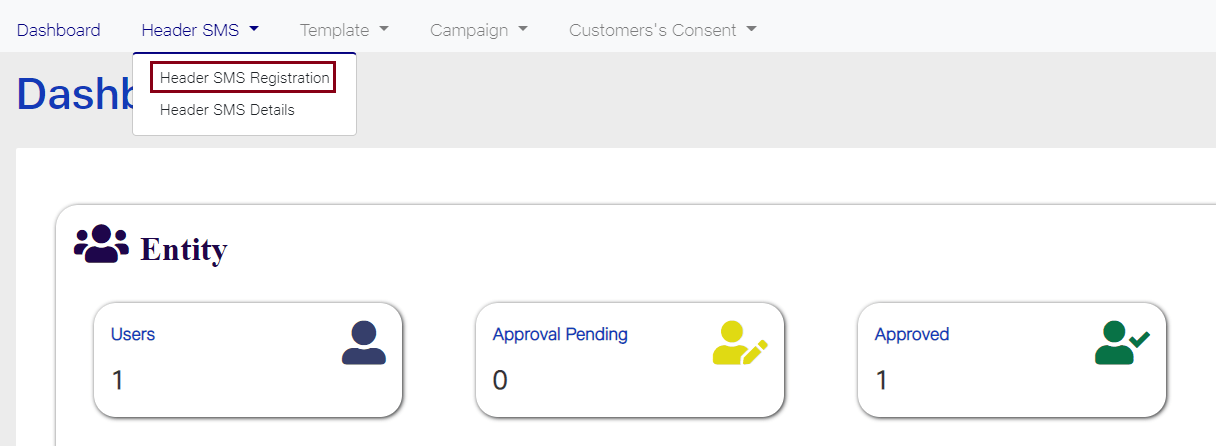
1. Login to your Jio DLT SMS portal. Header SMS option will be visible on your dashboard screen. Once you click on that tab, two options will get displayed – Header SMS Registration and Header SMS Details. Select the first option Header SMS Registration.

Header SMS Registration

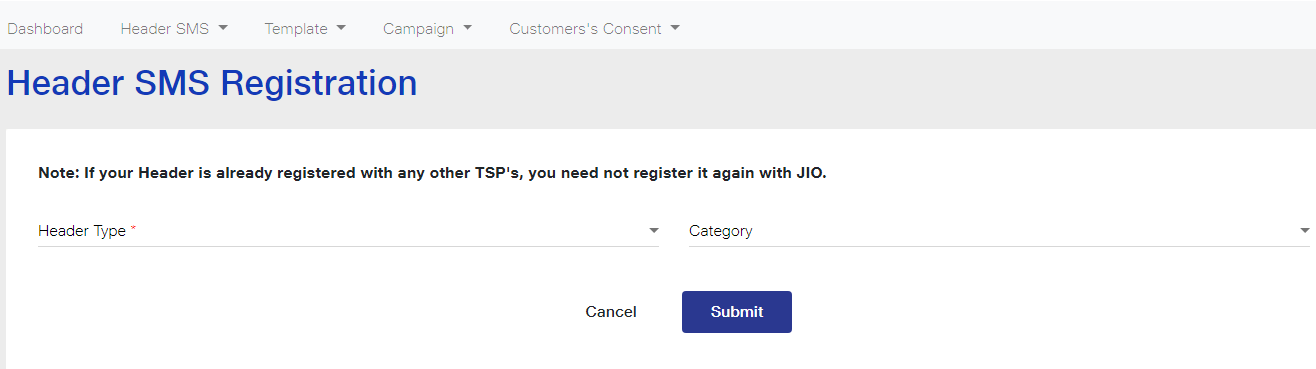
2. Once you select it the following screen will get displayed.

Header Type Option

3. Select the Header Type based on your SMS content. If your SMS is promotional in nature select the first option Promotional and if the SMS is informative then choose the second option Others (Transactional, Service Explicit, Service Implicit).

Header Category

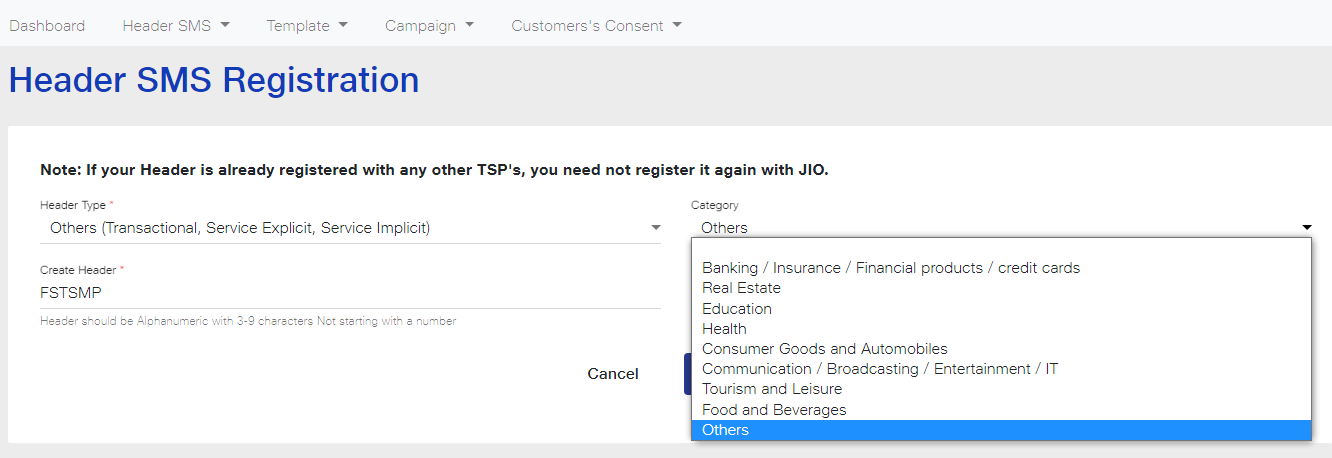
4. Select the Header Category from the dropdown list. If your business or industry is related to Finance choose the first option, if you are a Real Estate Business owner choose the second and so on. If your business does not fall in any of the listed categories, select Others.

5. Create a Header Name of six letters representing your company name.

Important points to remember while creating Header Name

  • If you have selected Promotional in the Header Type tab, then your Header must be in numeric digits. The starting digit must be according to the category selected. For example, if your business comes under the first category that is Banking/Insurance/Financial products/credit cards, then your Header should begin with 1. Similarly, if you are in Real Estate Business then the Header will begin with the numeric digit 2. Your Header Name should begin with the numeric digits as displayed in the table below:
Business CategoryHeader must start withExamples
Banking/Insurance/Financial products/Credit cards1163849, 154772
Real Estate2243563, 287623
Education3387659, 384342
Health4498723, 498766
Consumer Goods and Automobiles5567439, 521987
Communication/Broadcasting/Entertainment/IT6678775, 691223
Tourism and Leisure7768972, 754327
Food and Beverages8829653, 896544
Others0035647, 076421
  • If you have selected ‘Others’ as the Header Type, then your Header must be in 6 alphabetical characters. You can choose a string of six letters representing your business or brand name.
  • The Header names are case-sensitive. For example, the Header FSTSMP and fstsmp will be considered two different Headers and both are valid.

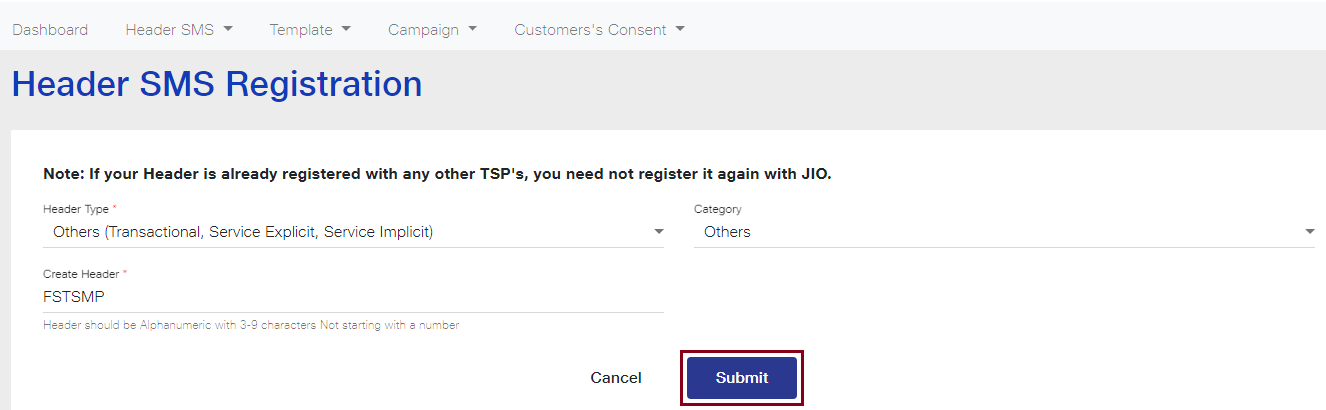
Create a Header name in accordance with the above stated points and then click on the Submit button. As you can see in the image below, we have created Header Name as FSTSMP as the Header Type is Others and is for Transactional, Service Explicit and Service Implicit messages.

Create Header in Jio DLT

Header Name must be as follows:

Promotional Route: 6 Digit Numeric only.

Other Route: 6 alphabetical characters only (without number)

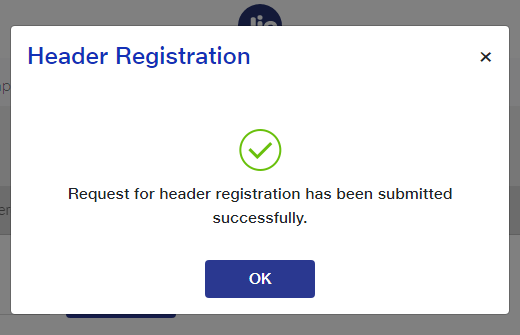
Request for header submitted

6. As you click on the Submit button, a dialog box will appear on your screen as shown below.

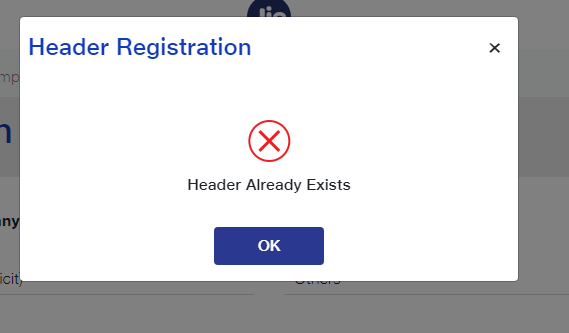
Note: If your Header name has been already taken by someone else, the following message will appear on your screen.

Header Already registered

7. Once you have submitted the Header request, an email will be sent on your registered email ID stating that Header registration request is received and is being processed.

Jio confirmation email of header registration request

8. It can take 3-7 working days for headers approval from Jio DLT after submitting your request.

You can check the status of your Header Registration Request from the Header SMS Details option in the Header SMS tab. The status of Headers pending for approval, rejected and registered can be viewed from this tab.

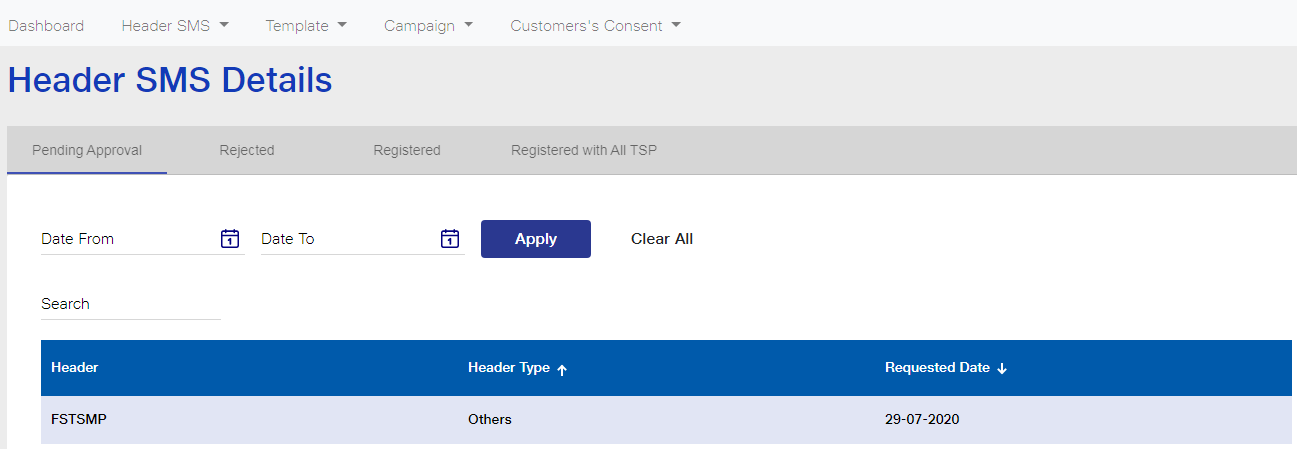
As you can see in the image below, Header FSTSMP submitted for approval is in the Pending Approval tab. Here, the Header Name, Type and Registered Date will also be displayed. You can even search for a Header within a specific time frame. As shown in the image, a date selection field is visible. Enter the time period in the Date From and Date To fields and then click on Apply. The Headers based on the selected time frame will be displayed.

Pending for approval FSTSMP

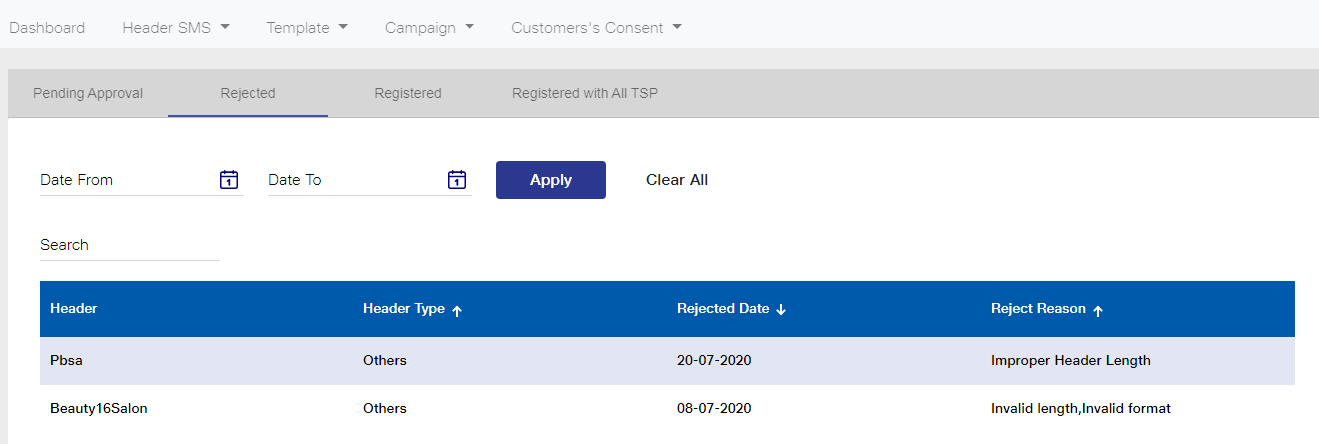
The Headers which have been rejected will be visible in the Rejected tab. As you click on that tab, the Headers rejected will be displayed as shown in the image. The Header Type, Rejected Date and the Reason for Rejection will also be available to view.

As you can see in the image below, Header Pbsa has been rejected with the reason of improper Header length. Next, Beauty16Salon has been rejected because of Invalid length and Invalid format.

Similarly, your registered Headers can be viewed from the Registered tab.

Header rejected

Next steps will be to approve your Consent & Content Template.

can you have two facebook pixels on one website

There are a few reasons why you might want to have more than one Facebook pixel on a site – but is it actually possible to do this?

Yes, you can have multiple Facebook pixels on a website.

Generally you will only have one Facebook pixel on a website, but it is possible to install multiple Facebook pixels on site if needed.

You can create multiple Facebook pixels (for example you might have a network of websites that you manage and you want a specific pixel for each) and you can also install multiple pixels on one site.

The most common ‘use case’ I’ve seen for more than one pixel on a website is where you have a pixel for your own ad account, and then an agency or 3rd party that is also providing services for your business has their pixel installed in order to seed the remarketing audiences or track the conversions they are focused on.

Whatever the reason, it is definitely possible to install more than one Facebook pixel on a website.

Here are some reasons why you only need one Facebook Pixel:

  • You simplify your ad creation – you aren’t having to choose which pixel you are optimizing around.
  • You get better results when the Pixel is “seasoned” with more traffic.  Facebook learns better with more data.
  • You maximize your retargeting by not splitting your audiences into smaller segments.

When you do need multiple Facebook Pixels

The only time you really need multiple Facebook Pixels is if you have websites with very different audiences.  For example if you have a website for your business and then you also have a website around some unrelated hobby like knitting – or standup comedy (which is on my own website, I know).

In that case, you would want different Pixels so that if Facebook is trying to optimize your conversions they know what type of person is typically opting in to your lead magnet or purchasing your product.

Facebook tracks the type of people who do go to your website or convert.  When Facebook shows your ads, they try to show ads to those type of people more likely to take the action you are optimizing around based on the history of the Pixel tracking.  And, of course, within the targeting parameters you have already set up.

If you do have different audiences, you have a couple options:

  1. Create a new Facebook ad account to separate the ads and the pixel data completely. This is the easier option in my opinion.
  2. Create a new Facebook Pixel and then make sure you select which Pixel you are using when you create the ad.  If you do this, then you must use the Facebook Business Manager.

A question that comes up often is how this works when people are running Facebook Ads for clients.  You should definitely not run Facebook Ads for clients all on one ad account because you are putting all the ads in that account at risk if the account gets shut down.

If you are running Facebook Ads for clients, you should either run them on separate Ad Accounts or run them on the Ad account of the client.

How to create additional Facebook Pixels

If you did want to create another Facebook Pixels you can do that in the Events Manager section of the Ads Manager.

Create a New Facebook Pixel

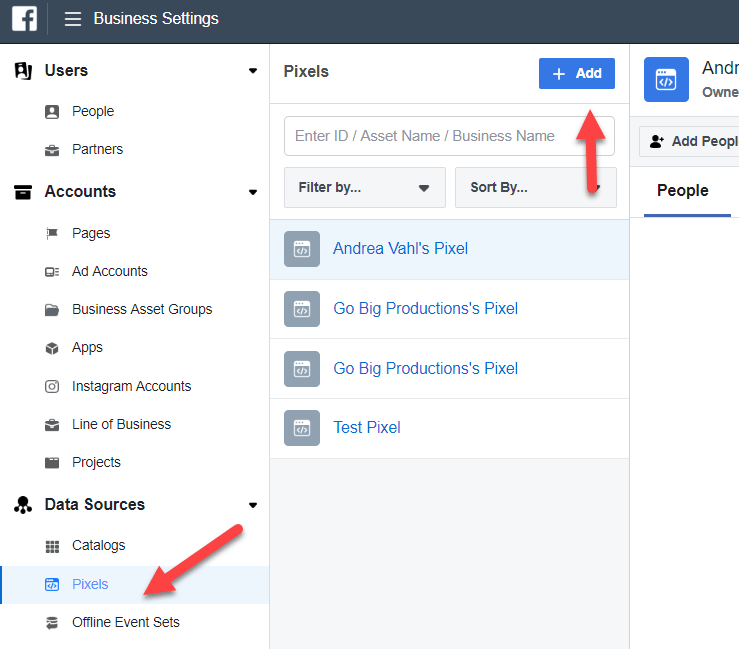
Or you can also create a new Pixel in the Business Settings of your Business Manager and then you can also assign who has access to that Pixel to use it in ads.

Business Settings Create Facebook pixel

But typical business owners will not need multiple Facebook Pixels unless they have different audiences that they are tracking and optimizing around.  

how to manage dynamic content id in facebook ads

Dynamic Ads

Dynamic Ads are ads dynamically created by populating an ad template with product information found in a data feed. This allows you to create thousands of ads without having to configure each of them individually. You can also use Dynamic Ads to target visitors based on how they have interacted with your website in the past.

The general steps for creating Dynamic Ads are:

  1. Set up conversion tracking for the specific standard events and their parameter object properties listed below, then
  2. Use the Commerce Manager to set up a dynamic ad set that targets those events

Requirements

  • You must have a Facebook Page for the business that your dynamic ads will apply to.
  • The pixel base code must already be installed.
  • You must have access to the Facebook Ads Manager.

Standard Events

Before you can set up dynamic ads, you must first be tracking the following standard events. You must also include a parameter object with specific object properties with each tracked event.

Required EventRequired Object Properties
AddToCartcontent_type and either content_ids or contents
Purchasecontent_type and either content_ids or contents
ViewContentcontent_type and either content_ids or contents

Refer to the Object Properties section below to learn what values to assign to the required object properties.

Object Properties

content_type

The content_type object property’s value must be set to either product, or product_group, depending on how you will configure your data feed when you set up your product catalog in the Commerce Manager.

If you will be tracking events associated with individual products, set the value to product. If you are tracking events associated with product groups, set it to product_group instead.

For example, here’s how you could track a visitor who has added the product with the ID 201 to a shopping cart. The ID matches the ID for that product in the product catalog.

fbq('track', 'AddToCart',
  // begin required parameter object
  {
    value: .5,
    currency: 'USD',
    content_type: 'product', // required property
    content_ids: '201' // required property, if not using 'contents' property
  }
  // end required parameter object
);

content_ids

If you are using the content_ids property in your parameter object, its value should correspond to the product ID or product IDs associated with the action. IDs must match the IDs found in your product catalog. Values can be either single IDs, or an array of IDs.

For example, here’s how to track a visitor who has added products with the IDs 201 and 301 to a shopping cart. The IDs match the IDs for those products in the product catalog.

fbq('track', 'AddToCart',
  // begin required parameter object
  {
    value: .5,
    currency: 'USD',
    content_type: 'product', // required property
    content_ids: ['201', '301'] // required property, if not using 'contents' property
  }
  // end required parameter object
);

contents

If you are using the contents property in your parameter object, in a sub-object, you must include the id property, with the product ID or product IDs as its value, and include the quantity property with a number of product items being added to cart or purchased. IDs must match the IDs found in your product catalogcontents property value must be an array of objects.

For example, here’s how to track a visitor who has added a product with the ID 301, and two products with the ID 401, to a shopping cart. The IDs match the IDs for those products in the product catalog.

fbq('track', 'AddToCart', {
  value: .5,
  currency: 'USD',
  contents: [
    {
      id: '301',
      quantity: 1
    },
    {
      id: '401',
      quantity: 2
    }],
  content_type: 'product',
});

Use the Facebook event setup tool for web

After you’ve added your Facebook pixel base code to your website, you can use the event setup tool to set up standard events and parameters without the need to code. Only standard events are available now, and not custom events.

Before you begin

  • Check that your website has a Facebook pixel installed.
  • Make sure that you have admin permissions for the pixel.
  • Turn off ad blockers in your browser.
  • Make sure that your business is not in a regulated vertical.
  • To set up content ID and content type parameters, a unique product identifier should be available either in your web page text or web page URL. For example, a product SKU or UPC. Content ID and content type parameters are only available for view content, add to cart, initiate checkout, purchase, search, add to wishlist and lead events.

Note: Facebook does not currently allow businesses in the following regulated verticals to use the event setup tool: investment banking and brokerage, insurance, financial services, retail, credit union and commercial banking, credit, financing, mortgages, pharmaceutical and health. Businesses in these verticals can set up events manually instead.

To use the event setup tool:

  1. Sign in to your Ads Manager account.
  2. Select Events Manager in the main menu.
  3. Select the pixel that you’d like to use.
  4. Click Settings.
  5. Select Open event setup tool under Event setup.
  6. Enter your URL and click Open website. The event setup tool will launch in your website browser.
  7. Click Review by each suggested event and then select Confirm or Dismiss.
  8. To add events that don’t appear in your suggested list, navigate your website as usual to find the buttons or web pages that you want. Select Track new button or Track a URL and follow the on-screen instructions.Note: When you set up an event on a button, you’re adding the event to all buttons with the same or similar text on your website.
  9. Select an event.
  10. Set up parameters for your event.
  11. Click Finish setup in the event setup tool when you’ve finished.

To view your events, go to Events Manager, select your pixel and view your event graph and table. To test that your events are firing correctly, go to Events Manager, select your pixel, click the Test events tab and follow the instructions. Learn how to use the test events tool.